
So, it’s time to unpublish your Wix site. The time comes for plenty of website owners, whether you’re looking to carry out some maintenance, rebrand your business, or shut everything down for good.
No matter your reason for unpublishing, I’ll walk you through the process step-by-step. However, there are important factors and alternatives to unpublishing to consider before you click that button, which I’ll discuss in more detail below.
How Do I Unpublish My Wix Site?
The good news is that Wix’s unpublishing process can be completed with just a few button clicks. In my experience, the task takes a minute or so.
#1. Log into your Wix account to get started.
#2. Once you’re in your account dashboard, navigate to the sidebar on the left and select “Settings.”
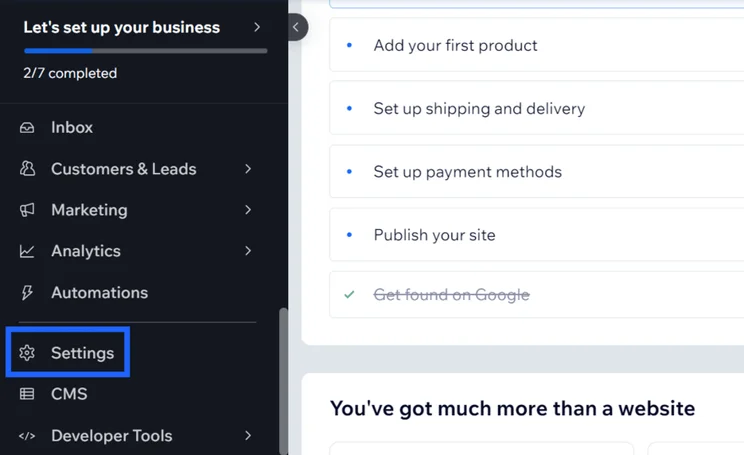
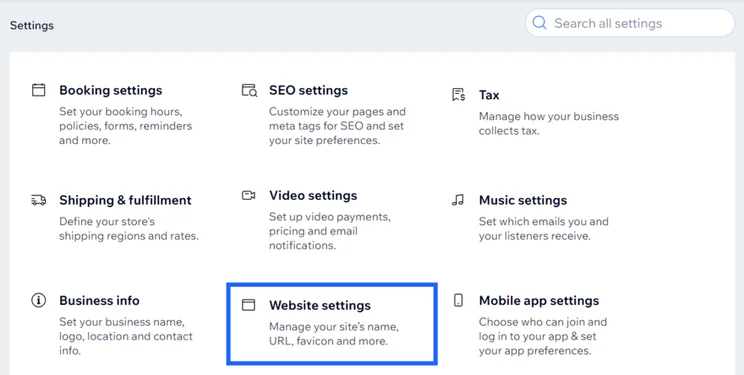
#3. Under the “General” section, click “Website settings” to be taken to the right page.
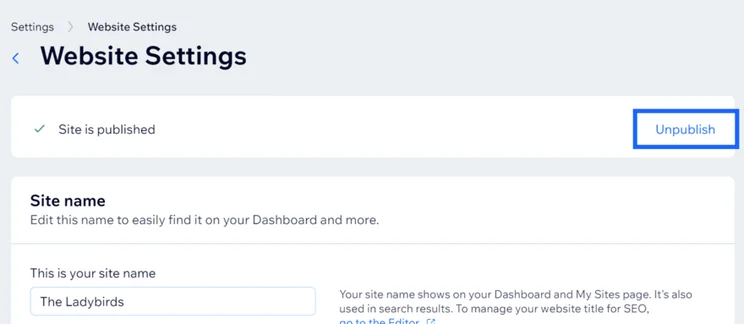
#4. At the top of this page, the first line shows your site’s published status. Simply click the “Unpublish” button here to make things final.
#5. You’ll then see a final pop up box, giving you a chance to change your mind. But, if you’re set on unpublishing your Wix site, click the “Unpublish” button once again.
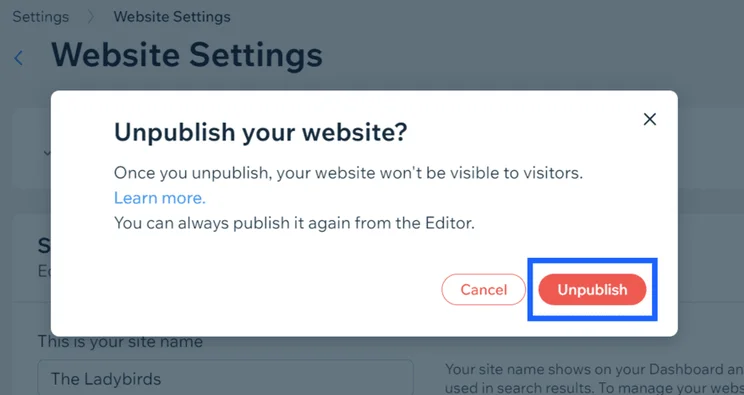
And that’s it! Once you’re in your Wix account, it only takes four clicks to unpublish your site. Your site will no longer be published, meaning it won’t be accessible to view and interact with. Of course, this doesn’t have to be forever – you can easily republish your Wix site when you’re ready.
Can I Republish My Wix Site?
Republishing your Wix site is even quicker. Naturally, Wix would rather your site be live than unpublished, so the process is very simple.
All you need to do is go to your site’s editor, navigate to the top right corner, and click on the bright blue “Publish” button.

Should I Unpublish My Wix Site?
Should you unpublish your Wix site? It gives you the opportunity to finetune your site or puts things on the back burner without fear of visitors, but it also comes with risks. I discuss the benefits and drawbacks below:
Benefits of Unpublishing
✔️ You don’t have to trash all of your hard work – if you choose to republish your site, all of your existing content and pages will still be there.
✔️ It’s a great way to carry out website maintenance and run tests – you can still make changes to your site when it’s unpublished.
Risks of Unpublishing
❌ You’ll still pay for your Wix plan and domain name subscription while your site is unpublished – if you want to cancel these payments completely, you’ll need to do so before unpublishing your site.
❌ There’s a possibility that your rankings will drop the longer your site is offline – if you have to unpublish your Wix site, limit the amount of time it stays that way (a few hours at most is a good rule to have)!
❌ It could impact your brand’s reputation and visibility – if your site is offline without warning, customers will think your business is unreliable and could lose trust in your brand.
What Are the Alternatives to Unpublishing My Wix Site?
Unpublishing your Wix site is just one option, but it won’t be right for everyone. What alternatives are available with the website builder?
Deleting Your Wix Site
Deleting your website is final. While unpublishing removes your site from public view, it will remain available – but dormant – in your Wix dashboard. You’ll also be able to publish it again if you decide to do so.
When you delete your site, you’ll erase it completely from the Wix servers and you can’t get the data back. Unpublishing is best if you’re updating or optimizing content, but deleting your site is ideal if you no longer require the site at all. For example, if your business has closed permanently.
To delete your Wix site, go to the editor and click “Site” in the top left corner of the navigation bar. A drop-down menu will appear and you then click “Move Site to Trash.”
Wix will give you a final warning in the form of a pop-up box. If you’re certain about deleting your site, click “Move to Trash” to complete the process.
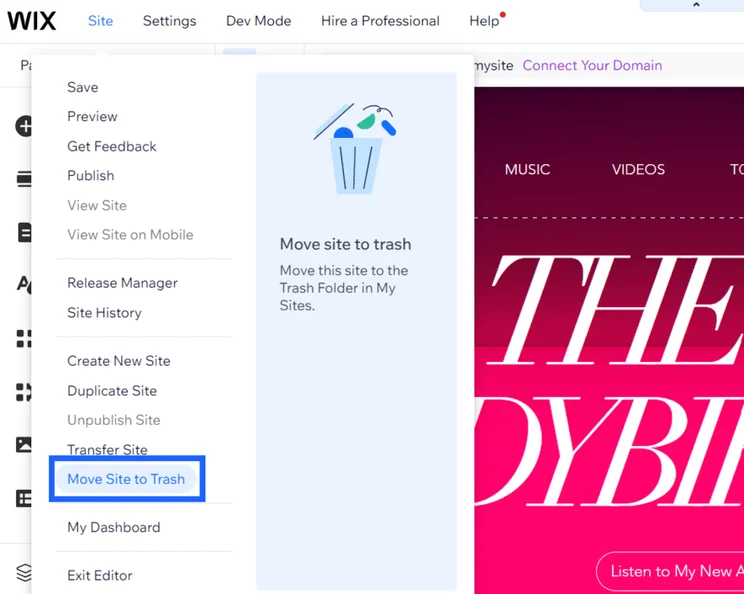
Remember to cancel your Wix subscriptions before deleting your Wix site. If you don’t, you might accidentally renew your Wix plan or be charged for your domain name or third-party apps. Your site will still be live if you simply cancel your plan.
Noindexing Your Wix Site
Noindexing your site will be the best option if you don’t want your site to appear in search engines, like Google, but do want it to remain accessible for select users.
To do this, select “Site & Mobile App” in the Wix dashboard sidebar. Under “Websites & SEO” you’ll find the sub-section named “SEO.” Click this to be taken to your website’s SEO settings.
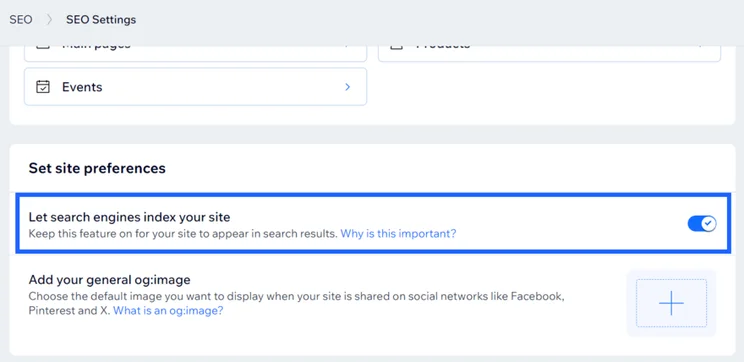
From here, scroll to the bottom of the page to set your site preferences. All you need to do is simply switch the slider that allows search engines to index your site.
Doing this won’t stop Google from crawling your website altogether, but it will prevent your site from being indexed. This means your site won’t be discoverable in search engines.
Create a “Coming Soon” Page
If you’re concerned about the SEO effects of noindexing or unpublishing your Wix site, there’s one final option to consider: add a “coming soon” page to your site.
This can be a useful option if your full website isn’t ready for the public eye yet, you’re redesigning your site, or you’re performing a significant amount of maintenance that will take longer than a few hours. It’s a great way to give your website visitors a heads up about what’s going on!
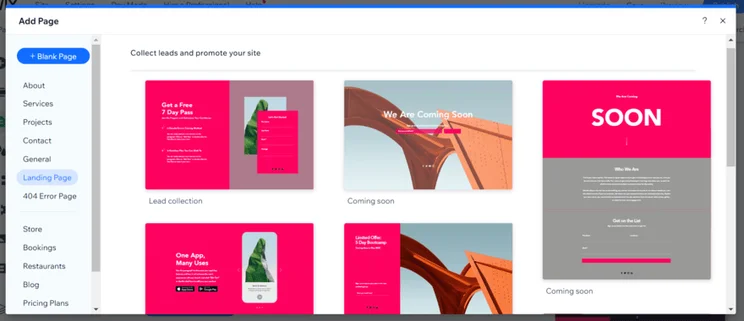
To create a “coming soon” page, click “Pages” in the editor sidebar and choose to add a page. When testing, I found this incredibly easy to do. Wix provides a host of free landing page templates to choose from which I could then edit to suit my brand.
You can also choose to set this page as your homepage by editing the page settings. To remove access to other pages, you can go into the page’s settings and remove from your site menu or tweak the page permissions.
How To Unpublish Your Wix Site: Summary
If you’re set on unpublishing your Wix site, here’s a reminder of the process step-by-step:
- Log into your Wix account
- Navigate to “Settings” in the dashboard
- Select “Website Settings”
- Click “Unpublish” to change your site’s published status
- Click “Unpublish” in the pop up box to finalize your decision
You know the benefits and risks of unpublishing your Wix site by now, and I’ve shared the best alternative options as well. But, to be safe, unpublishing is better than deleting your site entirely. You never know, you might want to republish your site in the future!
For more Wix-related advice, read our guide to how to use Wix to build up your confidence with the website builder.


1 reply
1 reply