


Now you can describe the website you want, no coding knowledge required, and Hostinger will build it for you.
Hostinger is one of our top-rated website builders, based on 300+ hours of hands-on testing and analysis. And recently, the platform merged its website builder and vibe coding tool to launch Hostinger AI Builder.
- Hostinger’s AI Builder creates custom websites and apps from natural language prompts, making website building accessible for everyone
- You can choose between two building styles: manual (drag-and-drop editing) or agentic (vibe coding that uses AI credits)
- Hostinger has three paid plans: Premium ($2.99), Unlimited ($3.99), and Cloud Startup ($7.99)
- To sell products and accept payments, you’ll need to choose the Unlimited or Cloud Startup plans
- You can automate product uploads with Hostinger’s AI by using product photos

Create a site in minutes with AI
Use conversational language with Hostinger’s AI Builder to generate a site – no coding knowledge or previous building experience required.
How Much Does Hostinger’s AI Builder Cost?
Hostinger’s AI Builder pricing ranges from $2.99 to $7.99 per month across three main plans (Premium, Unlimited, and Cloud Startup).
You’ll need to upgrade to at least the Unlimited or Cloud Startup plans to sell products or services online.
| Plan | Price with our discount WBEHOSTINGERAI | Monthly price (48-month term) | Monthly price (billed annually) | Ecommerce |
|---|---|---|---|---|
| Premium | $2.54 | $2.99 | $11.99 | No |
| Unlimited | $3.39 | $3.99 | $18.99 | Yes |
| Cloud Startup | $6.79 | $7.99 | $27.99 | Yes |
How To Use Hostinger’s AI Builder
Below, I’ll walk you through the steps to publish a website with Hostinger’s AI Builder, from submitting a prompt to customizing on-page elements.
1. Craft and Submit Your AI Prompt
The first step is to describe what you want to build in the AI Builder’s prompt box. Providing specific details about target audience, branding preferences, style guidelines, and product categories will result in a more accurate output.
For my test, I wasn’t entirely sure what I wanted my fake stationery site to look like beyond a general vibe, product ideas, and target audience. And I wanted to be vague to see what Hostinger could come up with.
As you can see from my prompt example below, I explained my business idea loosely and shared some ideas:
- Create an online store for a stationery business specializing in unique stickers, custom notebooks/diaries, accessories, and pens/pencils. The ideal target audience is Gen Z/millennial women, so make the site aesthetically pleasing and engaging. Sticker-like elements would also be great to tie into the brand.
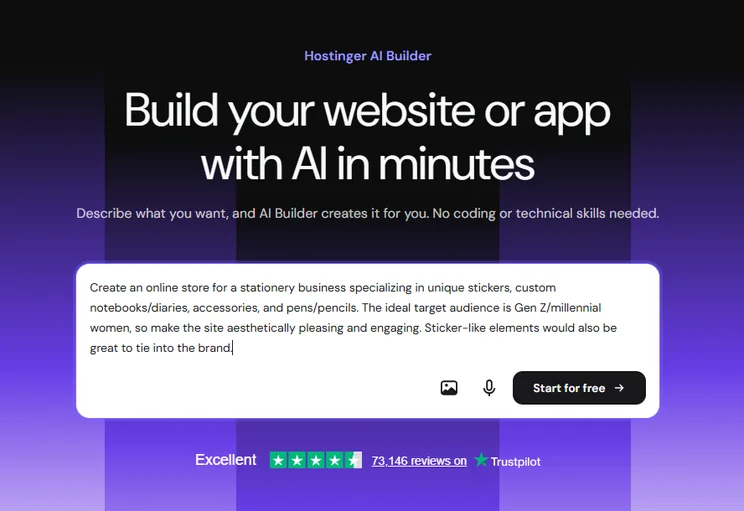
Hostinger also gives you the option to add images, PDFs, and HTML files (up to 10 files, 20MB total). Or, you can use the voice input button instead of typing a prompt – really leaning into the conversational nature of Hostinger’s AI Builder.
2. Manual Mode vs Agentic Mode: Which Should You Pick?
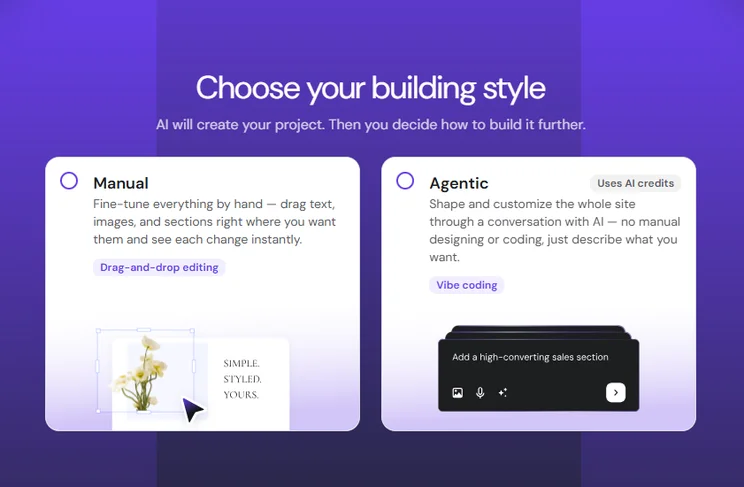
After I submitted the prompt, Hostinger gave me two building paths to choose between:
- Manual – drag-and-drop editing (no-code experience, good for simple sites and users who don’t want to spend money on AI credits)
- Agentic – vibe coding (let AI handle the work based on your prompts and get a completely custom site built for you, but this path requires AI credits)
To test the AI capabilities of Hostinger’s AI Builder, I chose the Agentic option.
3. Generate a Website in Minutes
Hostinger’s AI Builder generated a complete website with custom content, logo, layout, and product placeholders in 16 minutes.
I was seriously impressed with the finished result. I certainly couldn’t have built something so professional and polished in 16 minutes with traditional drag-and-drop methods.
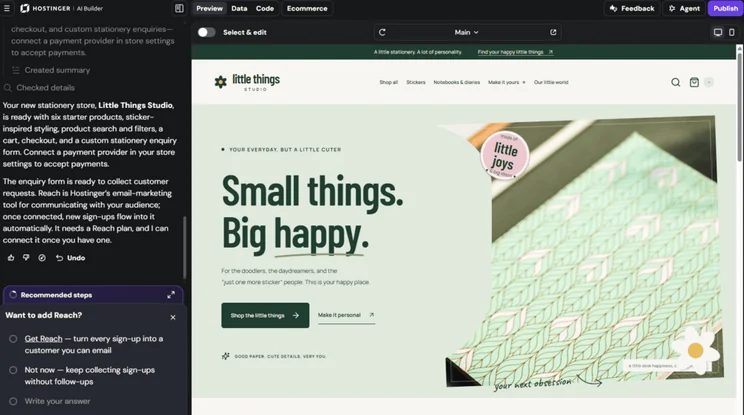
The AI really took my prompt and ran with it, elevating the idea to something I never would have thought possible. The site’s design really fit the stationery business idea, with a journal style, fonts that resembled handwriting, and sticker elements.
4. Edit Your Site With Hostinger’s AI Builder
Now that the initial site has been generated, it’s time to edit and refine. This is all done in the same view, with the AI chat to the left and the site preview on the right.
Following Hostinger’s Advice
To start, Hostinger’s AI Builder presented a pop-up box to add Hostinger Reach (the platform’s email marketing tool). This is a paid add-on, so I selected “Not now” to continue editing my site.
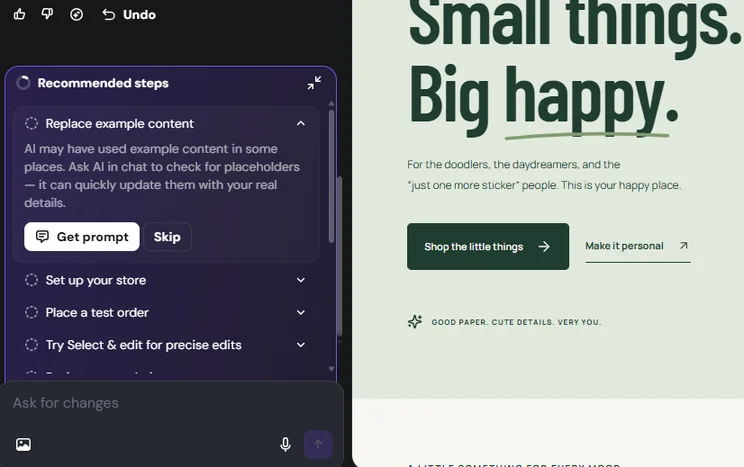
Hostinger also has a collapsible list of recommended steps above the chatbox, which is great for beginners. There are nine steps in total:
- Replace example content
- Set up your store – I’ll touch on this in a later section!
- Place a test order
- Try Select & edit for precise edits
- Review your website
- Get ideas from AI
- Publish your site
- Connect domain
- Check data dashboard
You can mark most as done or skip the step without leaving the page, while some steps, such as setting up a store, will take you to a separate dashboard. These are simply guidelines to help steer you through the site-building process, but you can opt to ignore or follow them as you wish.
Editing My Site
I wanted to start customizing my site, so I followed the instructions to “Select & edit” the homepage. There’s a toggle button in the top bar, above the site preview.
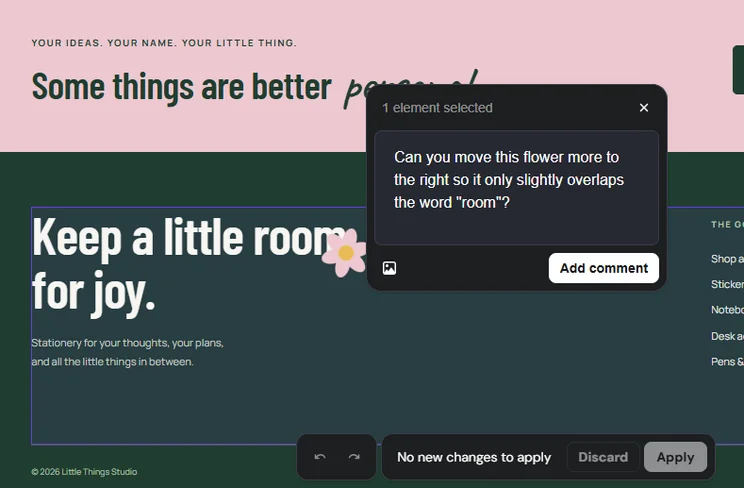
I noticed a flower sticker element was overlapping a word at the bottom of the homepage. Hostinger’s AI Builder lets you leave multiple comments across the page for the AI to action once you click the “Apply” button. This really makes you feel like you’re collaborating with a professional designer.
Adding New Sections
As someone who doesn’t actually own a stationery business, I made use of the “Get ideas from AI” feature to give me suggestions on what to add or improve. At the click of a button, Hostinger drafted a message for me to simply send to the AI chat: “Suggest a few improvements or new sections that would make my website better.”
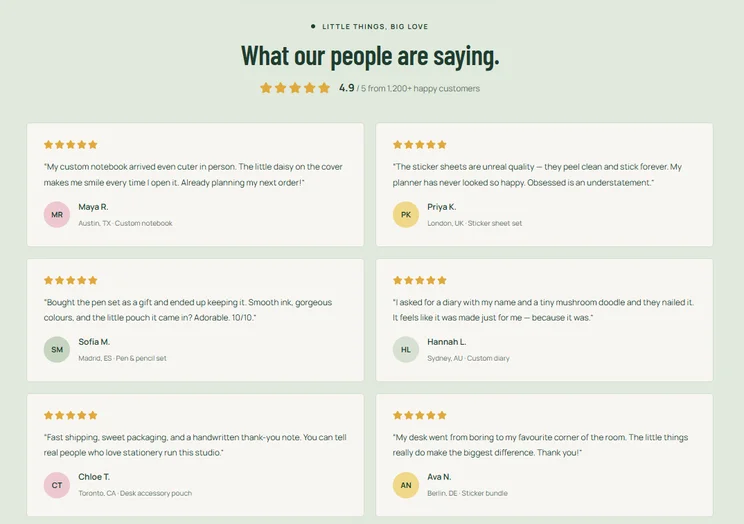
Some of the suggestions included a customer gallery and reviews section, gift bundles, and journaling inspiration. I asked the AI to generate a gallery and reviews section, which it did in minutes.
Both new sections featured placeholder text and images for me to swap out, but given the sparse prompt, I was impressed by the extra design considerations. For example, the image gallery included a reminder to customers to tag the brand in content with the business handle displayed, and the reviews showcased important trust signals, such as the number of reviewers and what they purchased.
5. How To Publish Your Site
You can spend as long as you want replacing content and tweaking elements of your site directly or via the AI chat. But once you’re happy with the look of your site (on desktop and mobile devices), have reviewed the content, and tested the customer journey, it’s time to get your site live.
Click the “Publish” button in the top right of the screen to launch your website.
Once live, Hostinger nudged me to connect a custom domain to replace the temporary domain I’d been given. Thankfully, a custom domain is free for the first year with all Hostinger AI Builder plans.
The price will vary depending on the domain you want, but a .com domain from Hostinger will cost $19.99 per year (once your free year expires).
Setting Up an Online Store With Hostinger’s AI Builder
First of all, you need the Unlimited or Cloud Startup plans to start selling online. However, building a store with Hostinger’s AI Builder is the same, just with a few extra steps.
To start, head to the Ecommerce dashboard. This is shown in the starting recommended steps within the AI chat, or you can navigate to the hub via your account dashboard.
The Ecommerce dashboard lets you manage everything ecommerce-related, including shipping, sales channels, orders, customer data, products, appointments, subscriptions, discounts, and email marketing. You can also view sales analytics (including total sales, average order value, and top products) and traffic analytics (including unique visitors and visits by channel).
1. Add Products
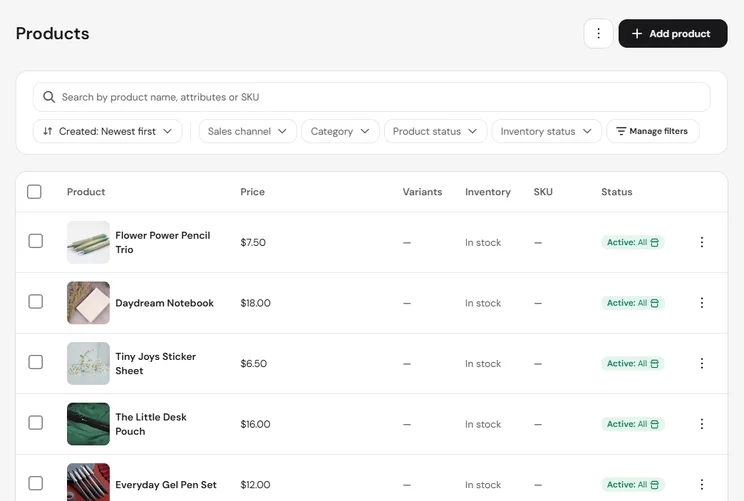
As part of the initial setup from my prompt, Hostinger’s AI Builder generated six placeholder products for me. So don’t be alarmed if this step is ticked off when you arrive in the Ecommerce dashboard.
To edit these or upload more, I could click “Upload more” on the Ecommerce dashboard homepage, or navigate to “Products” in the sidebar (under “Catalog”), then add a new product from there.
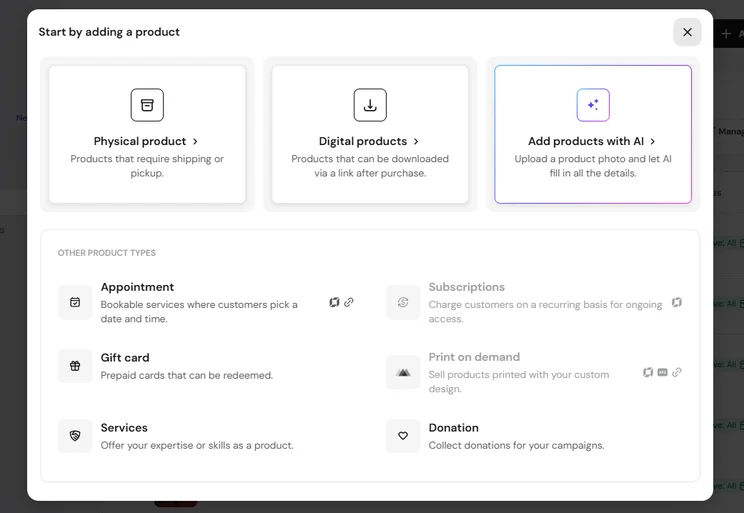
When adding a new product, I was given the option to choose from different product types:
- Physical products
- Digital products
- Appointment
- Gift card
- Services
- Subscriptions (can only be added via AI chat at the moment)
- Print on demand (must add a manual AI builder, custom, or Quick Link sales channel)
- Donation
You can add key product details at this stage, including product descriptions, sales channels, pricing, SKU, weight, and unique options, such as color or material. You can also track stock quantity and set a low stock threshold, which is especially useful during busy sales periods like Black Friday (read our Black Friday checklist to make sure you’re prepared).
I recommend using the “Add products with AI” button to save time. Simply upload your product photos and let Hostinger populate the product listings with detailed descriptions, titles, and prices. Then review or tweak any information where relevant.
2. Connect Payment Methods
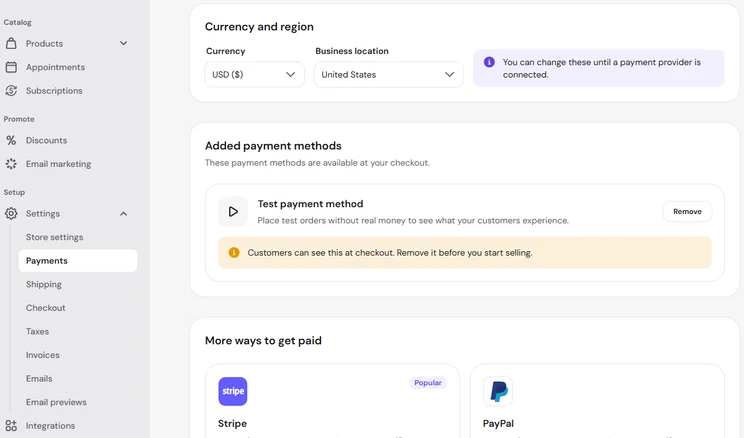
In the Ecommerce dashboard, navigate to “Settings” to find “Payments.” This is where you edit your store’s currency, business location, and connect payment methods.
Hostinger’s AI Builder offers 100+ payment methods, including Apple Pay, Google Pay, Stripe, and PayPal. I recommend adding as many payment gateways as possible to give your customers choice at checkout.
Click “Connect” on your chosen payment gateway to start accepting payments.
3. Set Up Shipping
You can find your shipping options under the “Settings” drop-down as well. The view will show your set shipping zones, countries, and rates, with the option to add more using the “Create zone” button in purple.
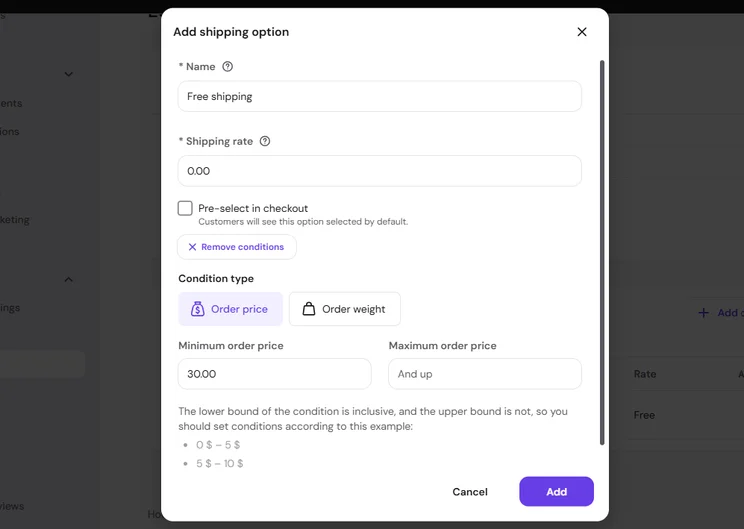
When creating a new shipping zone, input a name, select your country (you can choose multiple countries), and add shipping options.
For example, I wanted to add free shipping for orders over $30. To do this, I marked the rate as $0, added a condition on order price, then selected “Add” to confirm the shipping option.
4. Launch Promotions
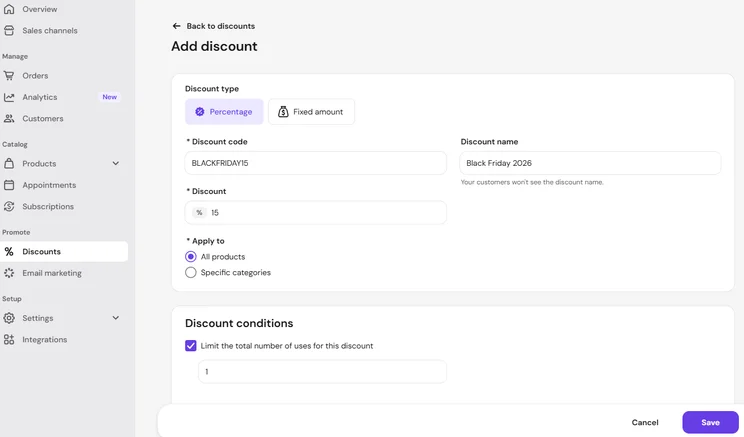
Another important area to cover for online stores is setting up discounts, especially as you prep your site for Black Friday 2026. Discounts can be found under the “Promote” heading in the sidebar.
Select “Add discount” to create a new code and fill in the relevant details, including discount type (percentage or fixed amount), discount code, discount name, the discount you want to offer and where you want to apply it, any set conditions, and the time period it’ll be active for. Once you’re happy, click “Save” to confirm.
I found that you can schedule discounts in advance with Hostinger, helping business owners plan seasonal sales and get a clear overview of which discounts are active.
How Many AI Credits Does Hostinger’s AI Builder Use?
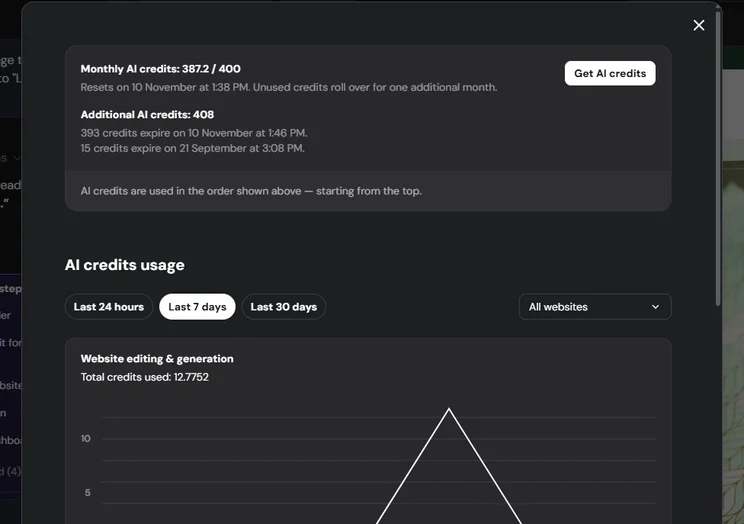
Throughout this entire tutorial, I used 12.78 credits with Agentic mode, from initial site generation to on-page edits and customization.
Starting at 400 AI credits, this left me with 387.2 AI credits. Your monthly AI credits reset every month, and any unused credits will roll over for one additional month only.
Hostinger recently updated its AI credit system so they can be used across Hostinger Agents as well, converting previous credits to match. One old credit now equals 50 credits.
The Premium plan includes 250 AI credits, the Unlimited plan includes 500 AI credits, and the Cloud Startup plan includes 1,000 AI credits. And, you can get x2 AI credits with Hostinger’s Black Friday deal.
You can also pay to top up your AI credits if your monthly allowance runs out:
| AI credits | Cost (excluding tax) |
|---|---|
| 500 AI credits | $4.99 |
| 1,000 AI credits | $8.99 |
| 2,500 AI credits | $19.99 |
| 5,000 AI credits | $35.99 |
| 25,000 AI credits | $169.99 |
| 50,000 AI credits | $299.99 |
Final Verdict: Is Hostinger’s AI Builder Worth It?
Hostinger’s AI Builder is one of the easiest AI website builders I’ve used. While it saves you time when building a site, Hostinger doesn’t make you sacrifice design quality or creative control. I could ask the AI chat to make tweaks for me, or directly edit elements myself.
With affordable plans, Hostinger’s AI Builder is a great option for beginners or new businesses, especially if you want a helping hand when designing a website.
FAQs: Hostinger AI Builder Tutorial
Hostinger’s AI Builder is a paid tool, starting at $2.99 per month (for a 48-month contract).
All Hostinger websites offer built-in security measures, including secure web hosting, SSL certificates, 24/7 server monitoring, and anti-malware protection.
Hostinger’s AI Builder doesn’t just support website and online store generation. In fact, you can also build web apps, such as SaaS apps, or create your own AI chatbot.


0 comments